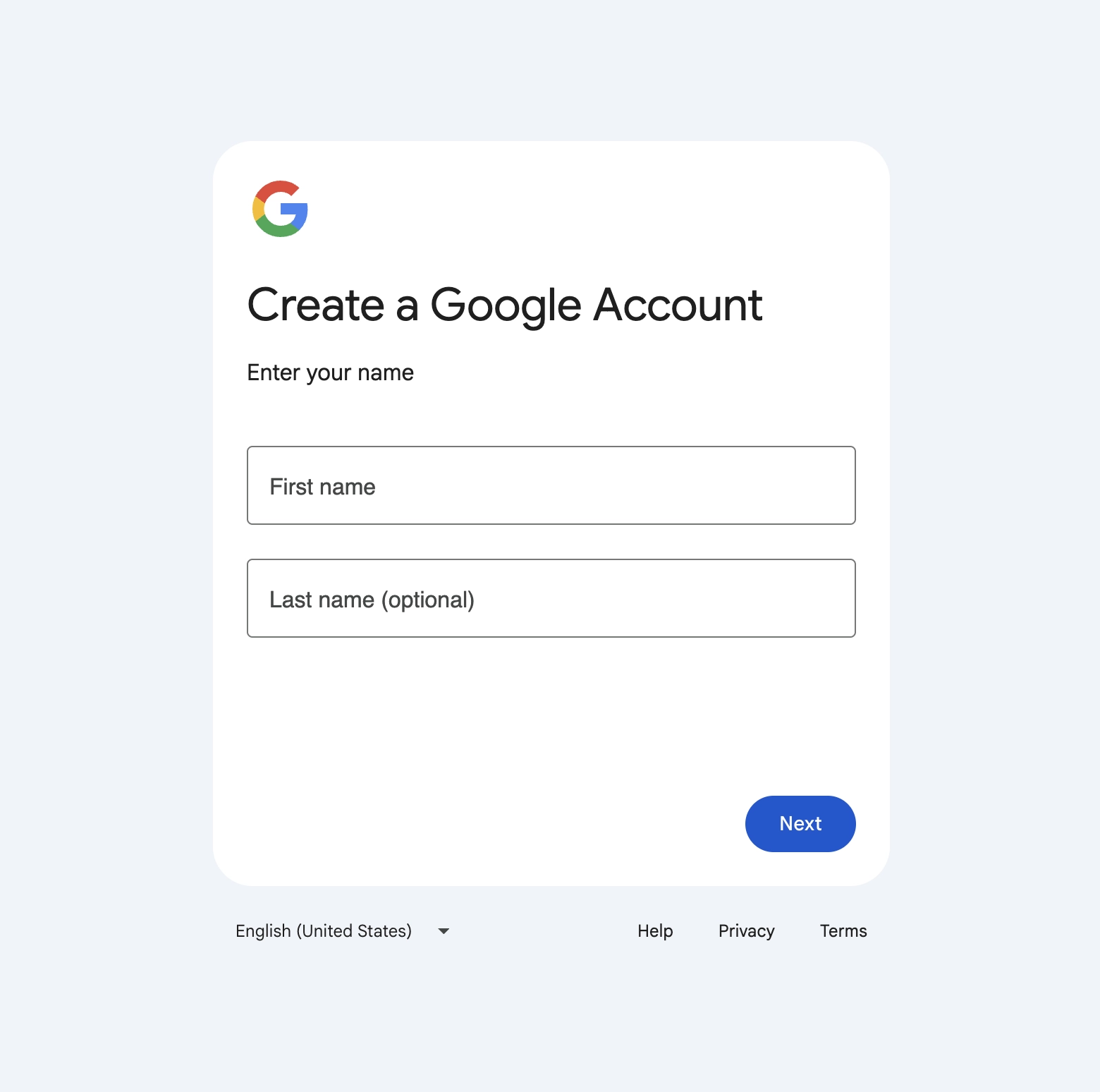
Here's how to create a Gmail account without giving Google your personal phone number.
You don't always have to provide Google with your personal mobile number when creating a new Gmail account. In most instances, you will see a 'Skip' link at the telephone number stage of the signup process and can proceed with just a recovery email to complete your account setup. If that link is unavailable and Google requires SMS verification to proceed, then your next course of action is to obtain a virtual number to receive the verification code as opposed to using your personal number.
We walk through both scenarios, as well as what to do if you never receive your code and how to gain access to your old, locked Gmail account after you lose your phone number access.

Is a phone number required to create a Gmail account?
Not necessarily. In most cases, you can complete your Google account setup using a recovery email only, but whether or not you are offered a Skip link at the phone number stage relies upon Google's verification procedures at that specific moment in time. You may be asked for your phone number to prevent mass account creation, to reduce the amount of spam in the system, or in any situation in which the setup procedure is flagged as somewhat atypical.
This is why, even if two users sign up at precisely the same time of day, each can experience the signup process differently, being either offered the Skip link or asked for an SMS code to verify their identity.
How to try creating a Gmail account without a phone number
The easiest and most straightforward approach is to see if you are offered the Skip link first, so use a standard browser window on Chrome or Firefox (not Incognito, and with no VPN attached to the browser).
- Proceed to the accounts.google.com/signup webpage.
- Complete your first and last name along with your birth date.
- Choose your desired Gmail address along with a strong password.
- On the page that requests your phone number, click on the 'Skip' link displayed underneath the field before proceeding.
- Next, enter your recovery email so that you do not experience lockout of your account in the long run, then accept Google's Terms of Service agreement.
Why Google may still ask for phone verification
On certain occasions, the Skip link will not be readily available to you on the phone number stage, or Google will ask you for SMS verification part of the way through the setup process. This will almost always be due to particular signals it believes are associated with unusual activity. These may include:
- the use of a browser or device that Google has not encountered before;
- the use of a VPN or proxy server;
- multiple accounts that have been created from a single network;
- a browser session that appears to be automated or unusual;
- an IP address or network connection that is flagged as likely to be a spambot.
This does not mean you have made an error or done anything that might be flagged as negative. It is merely automated anti-spam security that differs on a session-by-session basis.
What to do if Google asks for SMS verification
If Google is asking you to enter your phone number to get an SMS code and you do not want to give away your personal number to them, you have a second option: receive the verification code using a virtual number that is capable of receiving SMS. A virtual number provided by MoreMins works just as a physical number can, so you are able to use it to complete the setup process without needing to enter your own personal number. The same number also lets you receive SMS online for other services later. Based on Google's security settings at that given moment, this could help you complete your setup in cases where you are not offered a Skip link.
How to use a MoreMins virtual number for Gmail verification
- Download the MoreMins app and register for an account.
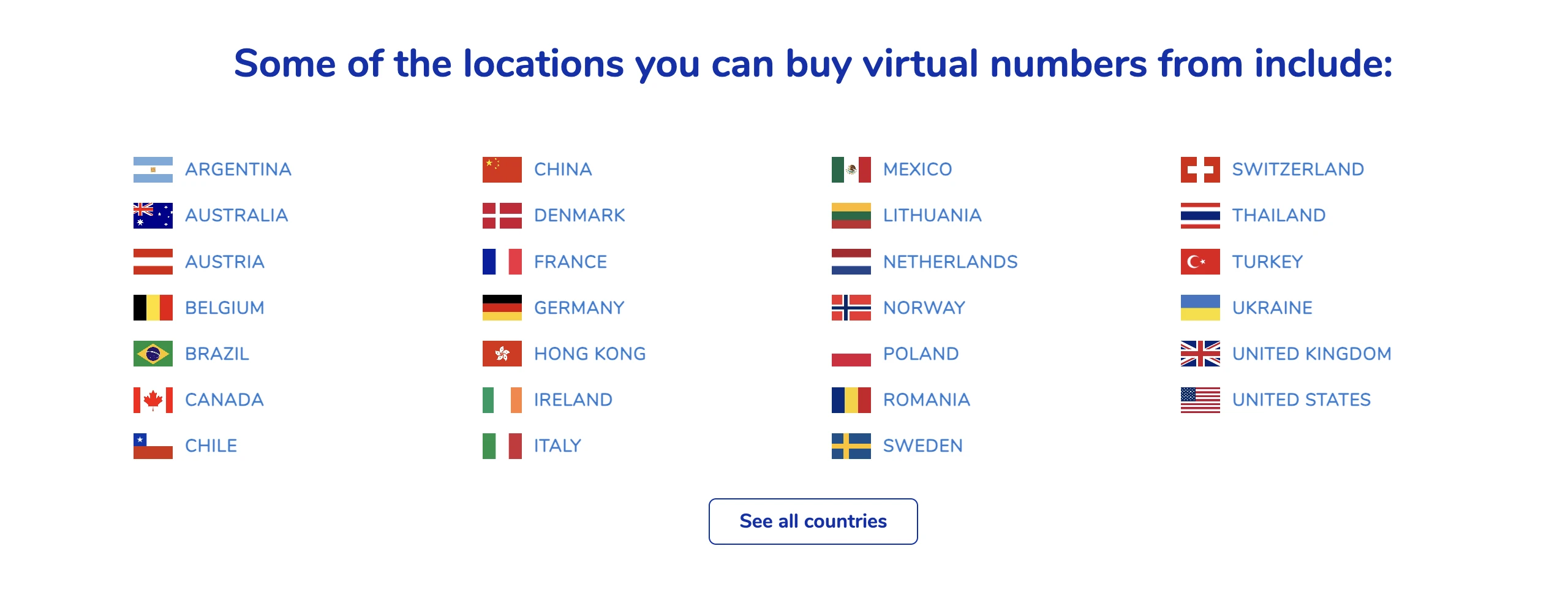
- Purchase a virtual number. UK and EU numbers tend to be the most effective for most cases.
- On Google's verification page, type in the virtual number with its corresponding country code.
- Google will then send you a 6-digit code via SMS to the virtual number.
- Open your MoreMins inbox, copy the code, and paste it directly into the Google field to complete your verification.
- After your Gmail account is set up, also enter your recovery email so you are no longer dependent on the number and can always regain access to your account.
What if the verification code does not arrive?
If the SMS code doesn't seem to be appearing straight away, the following quick steps should fix it:
- ensure you have entered the country code correctly alongside your virtual number;
- wait a minute or two before trying again, as messages do sometimes experience delays in their arrival;
- make sure you have not already entered too many codes in the same time frame, as Google will stop accepting attempts at that point;
- keep in mind that Google does not accept all virtual numbers, and you may have to try again or use a number from a different country.
How to keep your Gmail account secure after signup
Now that you have your Gmail account set up, there are various things you can do to ensure it is safe and that you are always able to access it if necessary:
- ensure that your recovery email is entered correctly and is one that you check on a regular basis;
- use a strong and unique password;
- set up 2-Step Verification with an authenticator app;
- save your backup codes in a safe place;
- consider setting up a passkey so that you can log in with something as simple as your face or fingerprint in the future;
- take a look at the activity history of your account from time to time to see if anything looks amiss.
Can you recover Gmail without your old phone number?
Most of the time, the answer is yes. Go to the Google Account Recovery page and click on 'Try another way' when requested to enter your SMS verification code. This will prompt Google to let you verify yourself in other ways.
- Navigate to the accounts.google.com/signin/recovery page and enter your Gmail address.
- When asked to enter your SMS code, click on 'Try another way'.
- Choose 'Send recovery email' if you have this option available.
- Alternatively, select the authenticator app method if you have 2-Step Verification enabled through one.
- As a last resort, 'Verify your identity another way' will take you to a number of questions, such as previous passwords and account creation date, that Google uses to confirm the account belongs to you. These reviews typically take a couple of business days to process.
- Once you regain access to your Gmail, add your recovery email and a virtual number so that you do not run into these problems again.
FAQ
Is it possible to create a Gmail account without a phone number?
Typically, yes. You should see a 'Skip' link during signup and can just use a recovery email if it is available. If Google requires SMS verification, you can use a virtual number to receive the code without entering your actual number.
Why does Google want my phone number?
For spam reduction, mainly. You are more likely to be asked to verify with a number when signing up from a new device or browser, when using a VPN, or if your browser session looks atypical.
Can I use a virtual number with Gmail?
Yes. A virtual number is a valid way to receive your verification SMS; you just provide the number to Google.
Is it safe to use a virtual number for Gmail verification?
Yes, it is perfectly normal. You still want a backup way to regain access, so a recovery email and 2-Step Verification with an authenticator app are recommended.
What can I do if I don't see the Skip option?
Your session has probably been flagged as slightly unusual. Try the signup again using a different browser without any VPN, or use a virtual number to receive the SMS code.
How can I get my Gmail back without the old phone number?
On Google Account Recovery you can verify with the available methods, including a recovery email, your authenticator app, or previously saved backup codes.