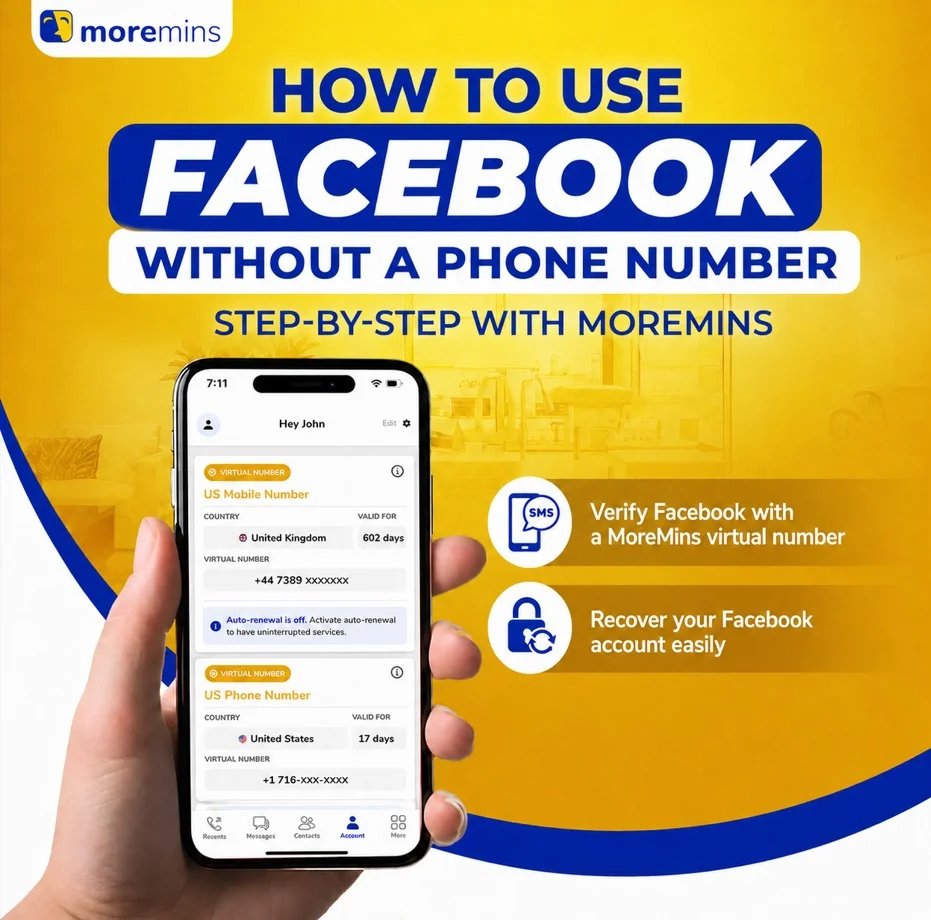
You don't have to give Facebook your personal phone number. Rather than using your actual line, you can sign up with a temporary MoreMins virtual number instead. The verification code is sent to your virtual number, and you confirm. Your personal number is never linked to the account. Locked out of an existing account? There's a recovery route for that at the bottom of the page too. Here's how it all works.
How to create a Facebook account without a phone number
The easiest way to keep your personal number off the account is to sign up using a MoreMins virtual number. Facebook treats it just like any real number, so signing up and verification happen in one simple step.
- Download the MoreMins app and activate a virtual number. EU and UK numbers have the highest acceptance rate.
- On facebook.com, open an incognito browser window and click "Create New Account".
- Enter your first and last name, date of birth and gender.
- In the phone number field, input your MoreMins number including the country code.
- Create a secure password and click "Sign Up".
- A 6-digit confirmation code is sent by SMS, and you'll see it in your MoreMins inbox.
- Copy the code into Facebook, add a profile photo, then skip the "add friends" step.
Facebook also allows signup with an email address, but a virtual number lets you create an account with a real, verifiable phone number without disclosing your own.
How to verify Facebook with a virtual number
Even after signing up, Facebook might ask for your phone number again, especially on new and highly active accounts (for example, if you add lots of people or join many groups too quickly). Your virtual number from MoreMins works for this verification as well, and you can keep it registered as your two-factor authentication number.
- When Facebook asks you to confirm your number, enter your MoreMins number with its country code.
- A 6-digit confirmation code is sent to your MoreMins inbox by SMS.
- Copy this code from MoreMins and paste it into Facebook to confirm.
- You can then enable two-factor authentication by entering the same MoreMins number under Settings, then Security.
How to recover a Facebook account without a phone number
If you ever get logged out and no longer have access to the number linked to your account, an SMS reset is not an option. Facebook does provide an alternative.
- Go to facebook.com/login/identify. You will need your email, old phone number, or the full name on the account.
- When Facebook offers to send a code by SMS, select "Try Another Way".
- Choose "Send code to email" if you have a recovery email on the account.
- Alternatively, choose "Get help from friends" if you set up Trusted Contacts earlier.
- As a last resort, select "Upload an ID" and submit a photo of your government ID. Facebook may take 1 to 7 days to respond.
- Once you regain access, add a MoreMins number to your account to prevent being locked out in future.

Essentially, the idea is simple: you use a MoreMins virtual number to sign up and verify on Facebook, keeping your real number private. The same number also works for other accounts, so you can receive SMS online from any website.
FAQ
Yes. The simplest way is to register with a virtual number from MoreMins instead of your personal one: Facebook sends the SMS code to it and you confirm. Facebook also accepts an email at signup, but a virtual number keeps a real, private phone on the account.
To keep accounts safe, Facebook runs identity checks on new and active users. Activity that looks suspicious, such as sending too many friend requests, joining numerous groups, or posting links rapidly on your first day, can flag the account for review and lead to a phone verification request. You can complete that step with a virtual number from MoreMins, so your personal details stay private.
No, not for using a virtual number on its own. Accounts are banned for fraud, spam, bullying, fake profiles, and failed ID verification. The number type is just one signal among many, not enough on its own to get you banned.
Generally, EU and UK country codes work best. A few country codes sometimes run into trouble at the verification step. If one code is not successful, simply try another from the MoreMins app.
Go to facebook.com/login/identify and find your account using your email, your old phone number, or the name you use on Facebook. When asked to receive a code by SMS, choose "Try Another Way". From there you can use "Send code to email" if you set up a recovery email, or "Get help from friends" if you enabled Trusted Contacts. If both fail, you will need to upload a photo of your government ID and wait for Facebook's response, which can take 1 to 7 days. Once you can log in again, add a MoreMins number as your contact number.
After the 60-second timer runs out, click "Resend code". If you are offered a voice call instead, choose it, as voice codes can be more reliable for virtual numbers. Whether it arrives by SMS or voice call, the code should also appear in your MoreMins inbox.